Quick Start
You don’t need to know exactly where or how you want to travel. Start vague, refine later.
- Sign in
- Describe the kind of trip you want
- Refine it through Chat
- Review Calendar and Map
- Save ideas or schedule them
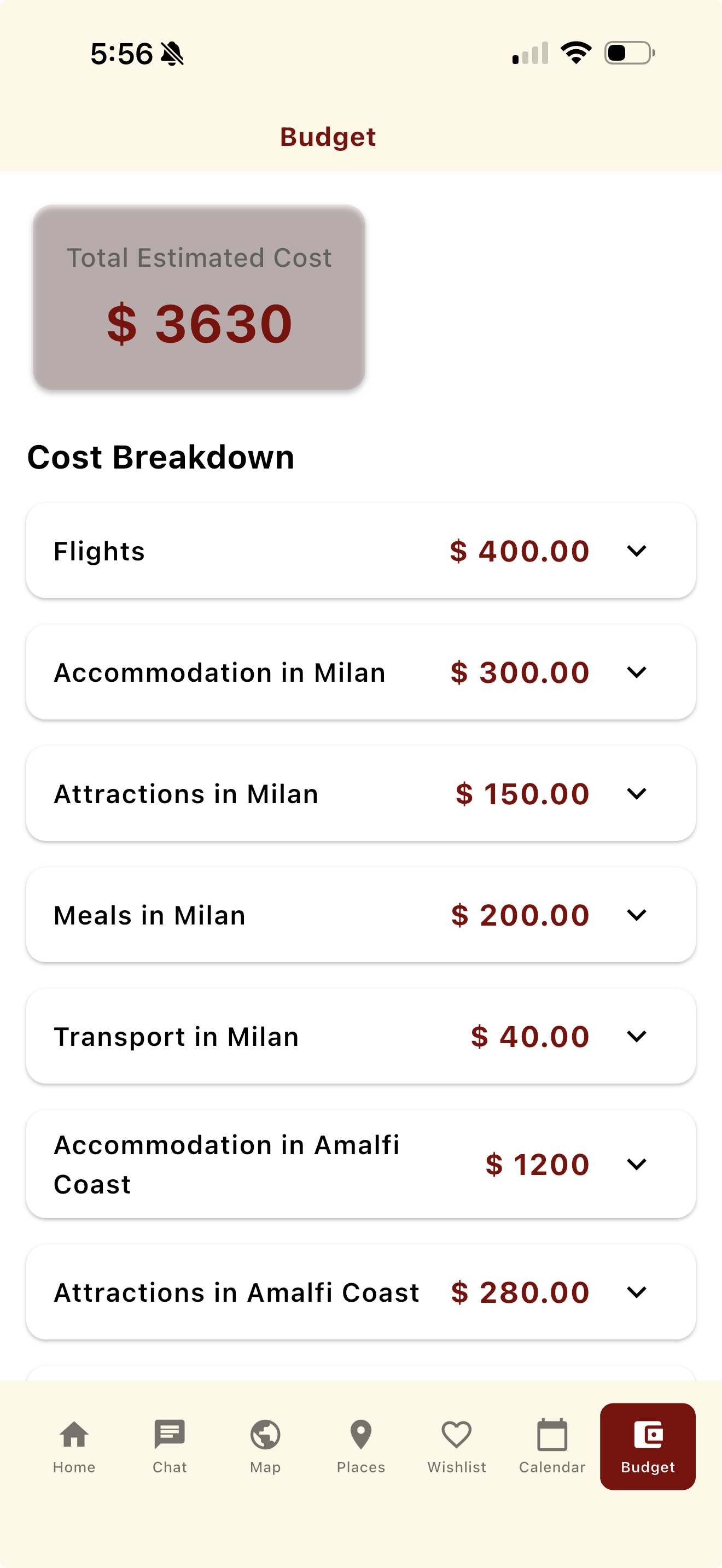
- Use Budget to set expectations
Guide Index
Getting Started / Login
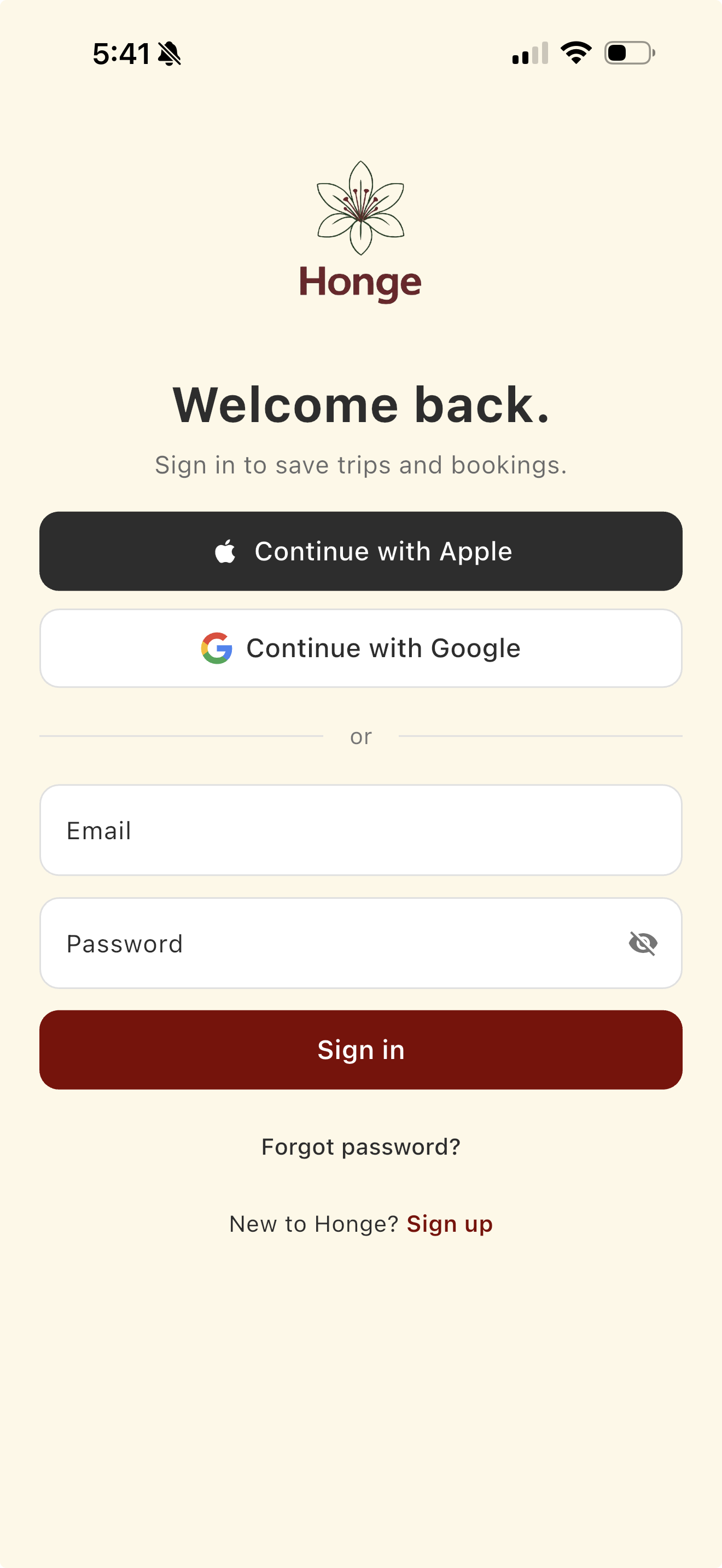
What this screen is for
This screen lets you sign in to Honge so your trips and preferences are saved across sessions and devices.
What you can do
- Sign in using Apple or Google for a quick setup
- Sign in using email and password
- Create a new account if you’re a first-time user
When you’ll see this screen
You’ll see this screen when opening Honge for the first time or when signing in again on a new device.
Home & Chat
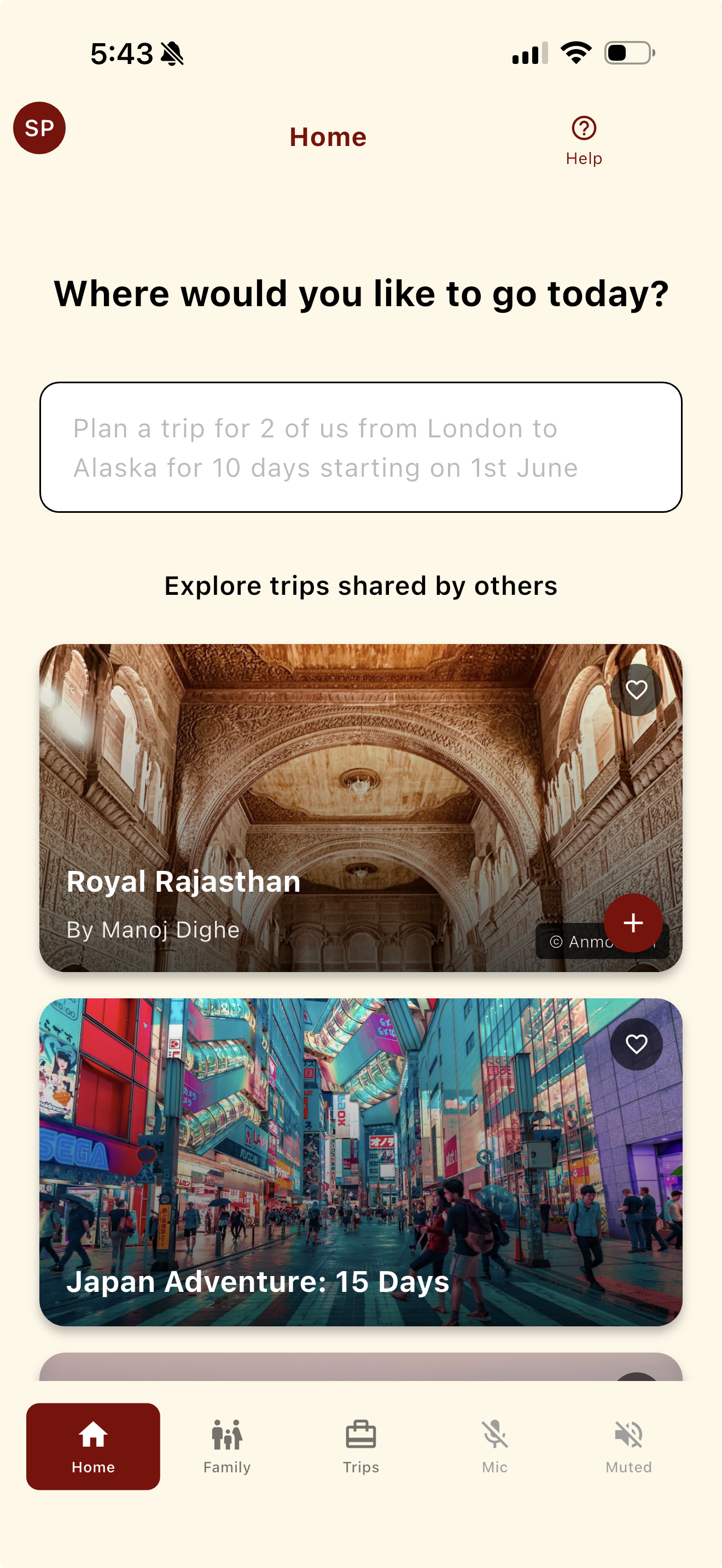
What this screen is for
This is where every trip begins. You describe what you want in plain language, and Honge responds conversationally.
What you can do
- Start a new trip with a simple prompt
- Refine destinations, pace, and interests
- Change direction anytime without restarting
- Browse some of our affiliate curated trips
Trip Calendar
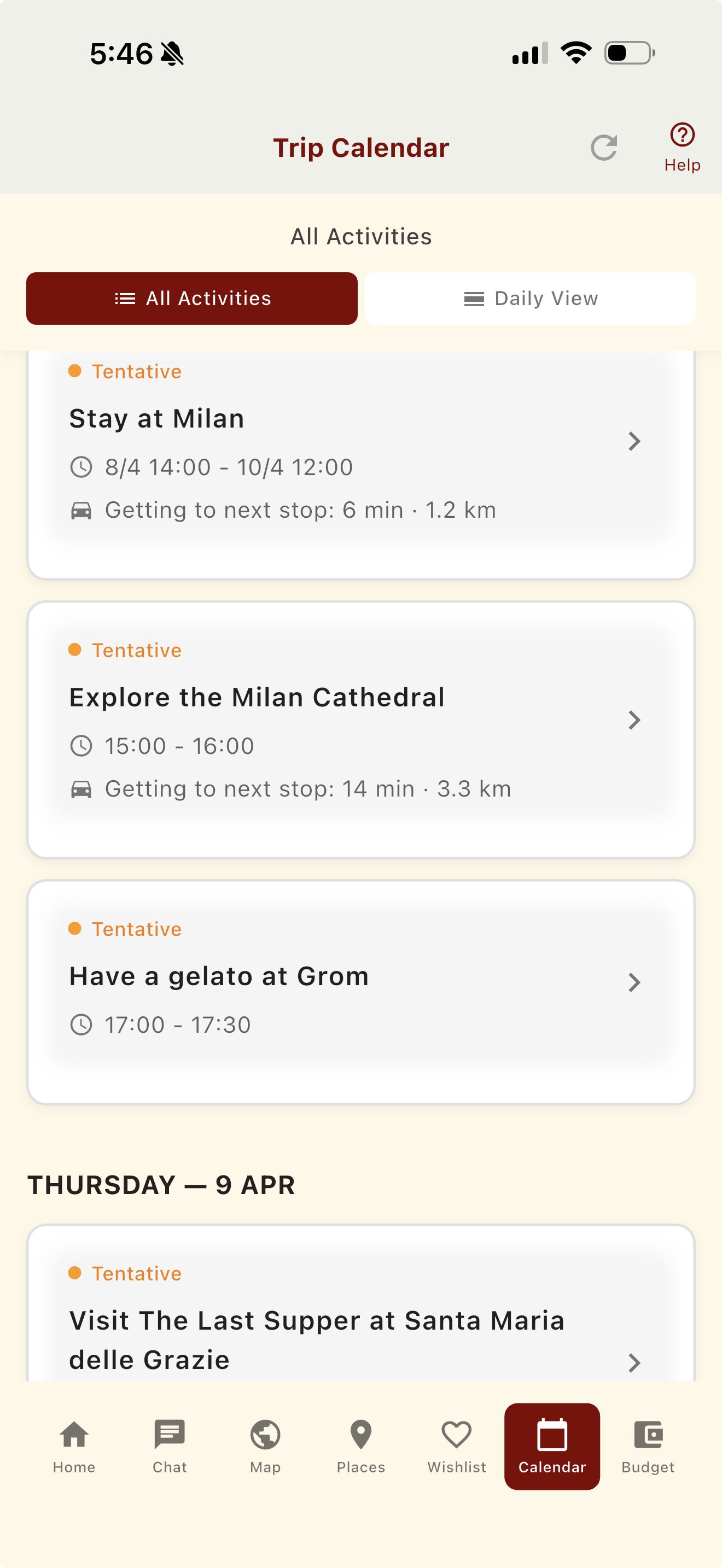
What this screen is for
The Calendar shows your itinerary as a realistic, time-based plan.
What you can do
- Review activities grouped by day
- Check pacing and travel gaps
- Identify tentative (unbooked) items
- In the Daily View items can be moved, added and deleted
Map
What this screen is for
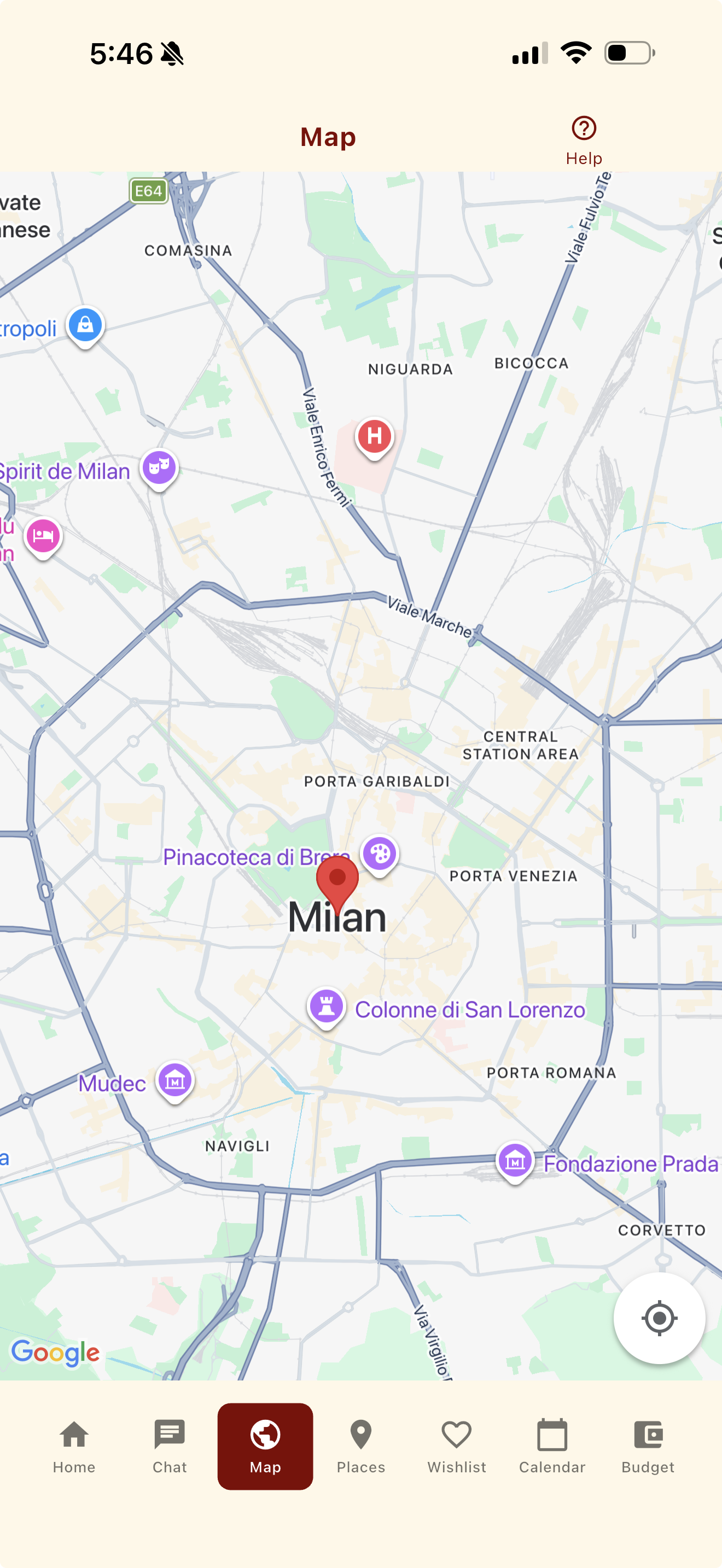
The Map helps you understand the geography of your trip.
Places
What this screen is for
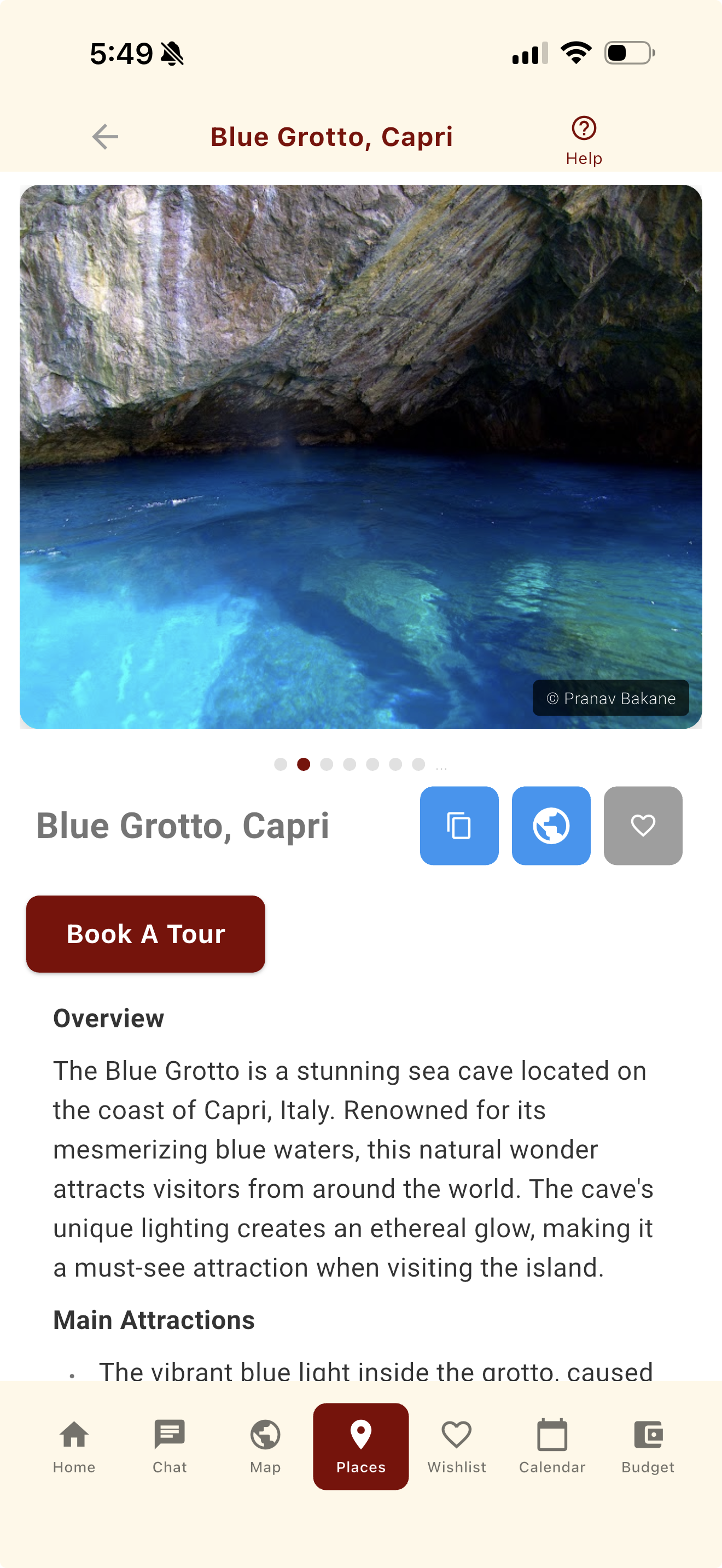
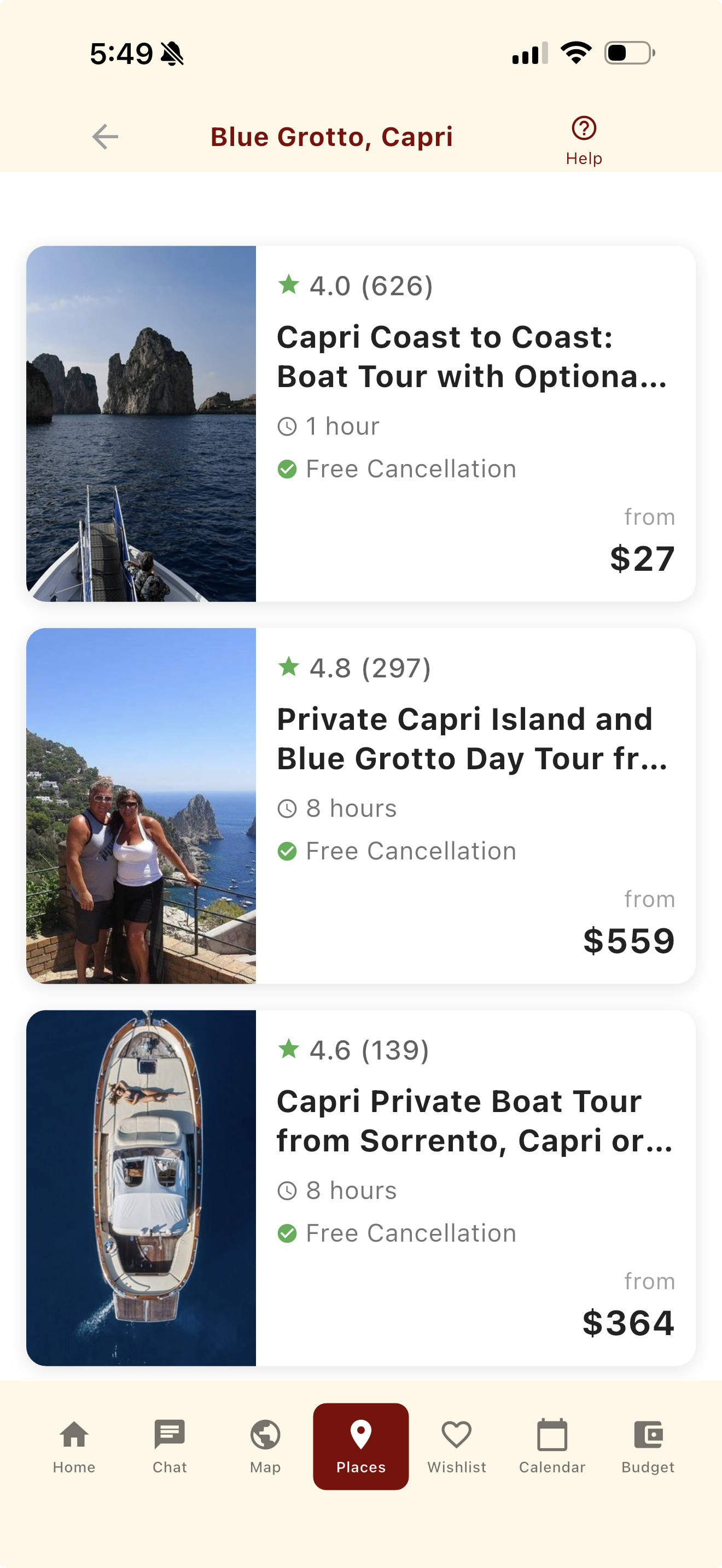
Places lets you explore attractions and experiences in depth.
What you can do
- Explore attraction details
- See photos and watch related vidoes
- Review tours available through affiliates
- Book tours
Wishlist
What this screen is for
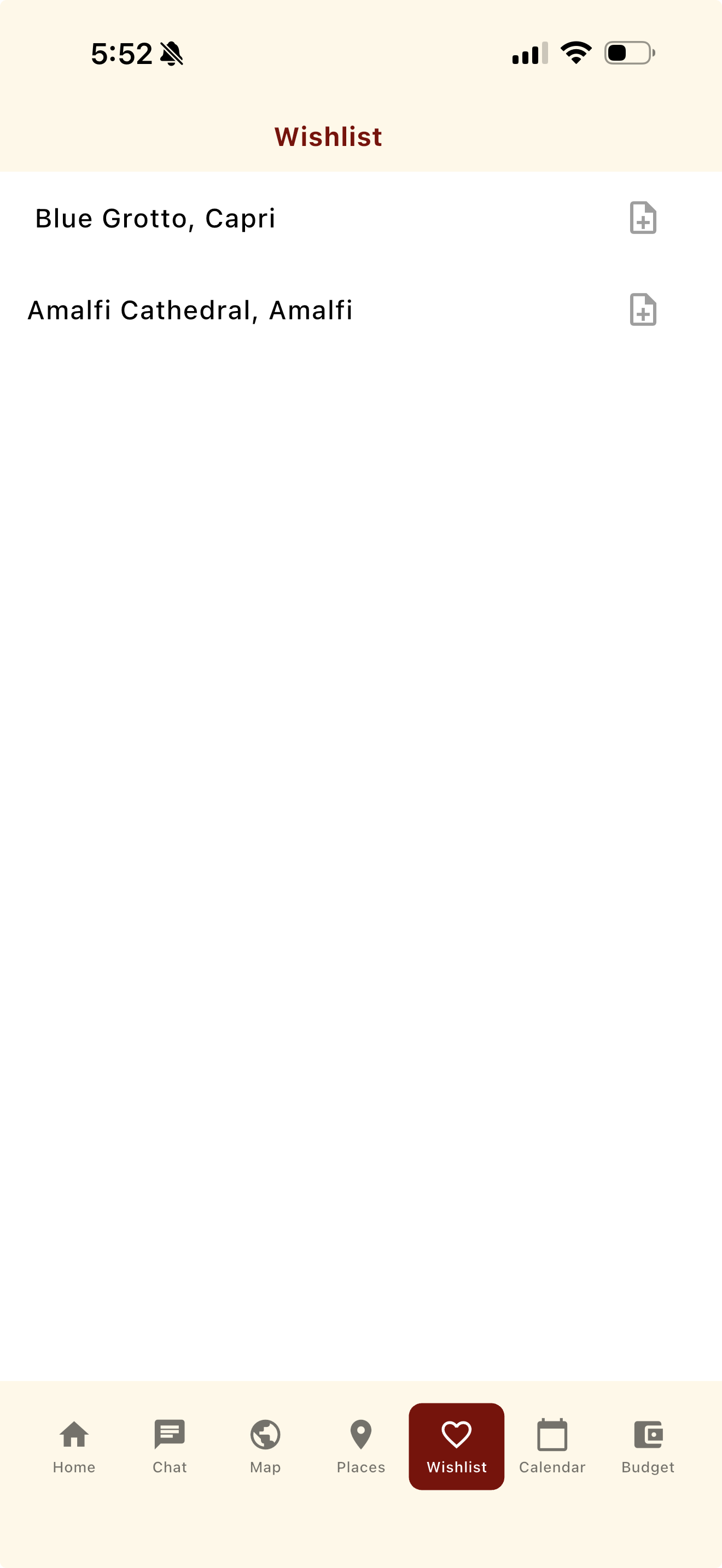
Wishlist is a holding area for ideas you’re not ready to schedule yet. It lets you collect interesting places without committing them to a specific day.
What you can do
- Save places while browsing
- Review ideas later when refining your trip
- Decide when (or if) something belongs in the itinerary
Taking action on a Wishlist item
Tapping on a Wishlist item opens a set of quick actions. This is the decision point between keeping something as an idea or turning it into a planned activity.
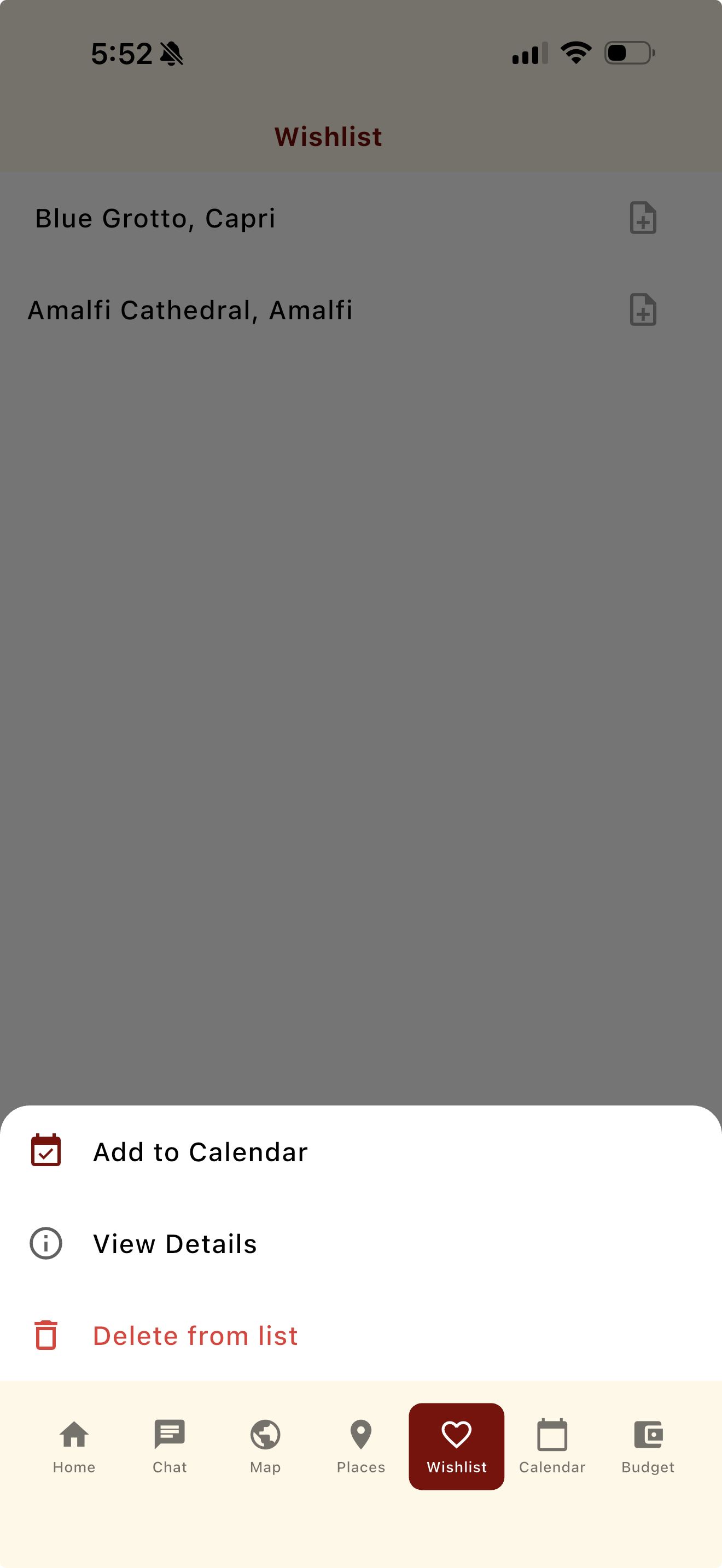
Adding a Wishlist item to your trip
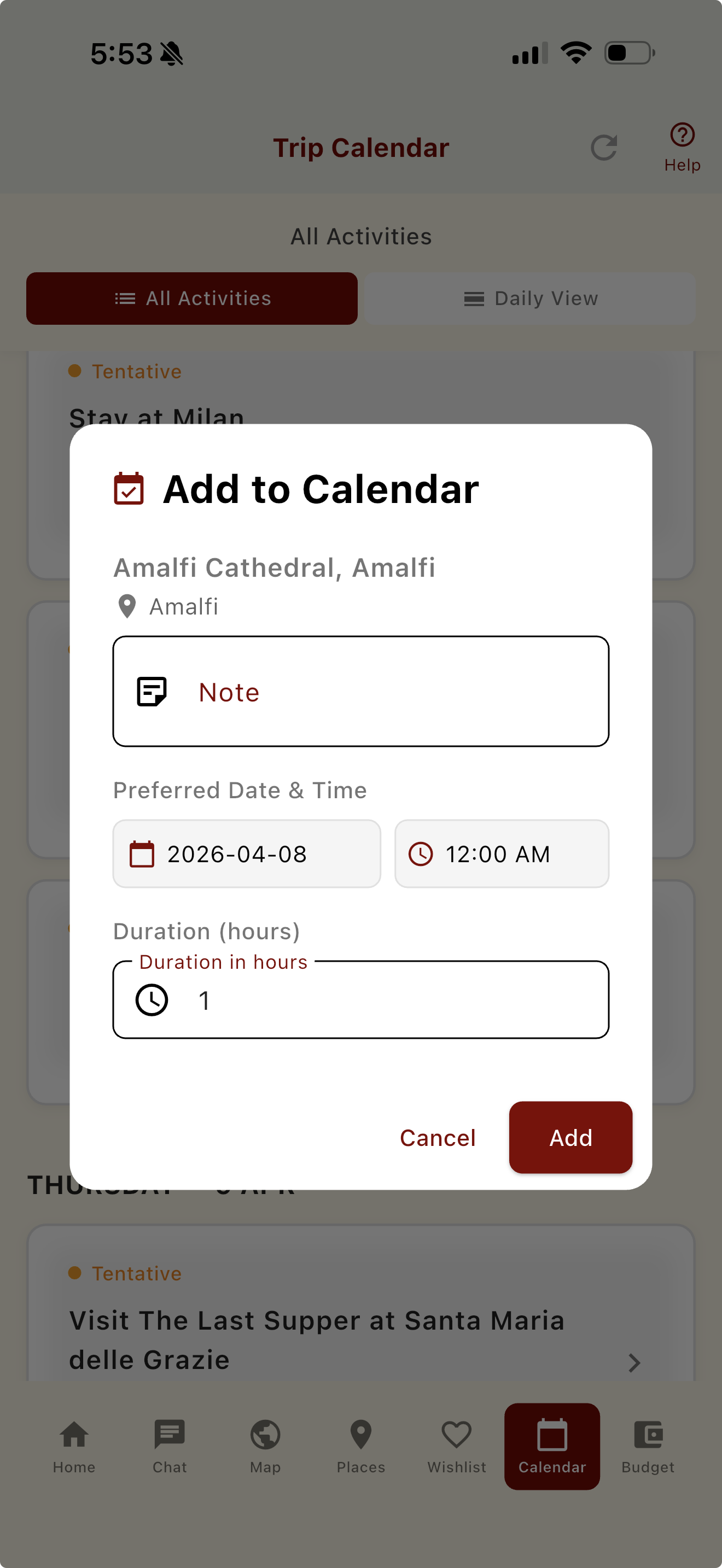
When you choose Add to Calendar, you can pick the date, time, and duration for the activity.
Once added:
- The item becomes part of your Trip Calendar
- It is removed from the Wishlist
- It is typically marked as tentative until confirmed
Budget
What this screen is for
Budget gives you a high-level estimate of trip costs.